SWIFT provides option to place ads in five killer positions.
- In the header, next to the logo.
- Below the navigation area.
- Just below the title on single post page.
- Between post content.
- Below post content on single post page.
Check the enable box and paste your Adsense or any other code in the text boxes provided. Check the screenshots for the location of the ads.
Considering the fact that 90% of your traffic will be to post page and not the homepage, I avoided inserting ads between posts on the home page. This will make your blog look clean and professional.
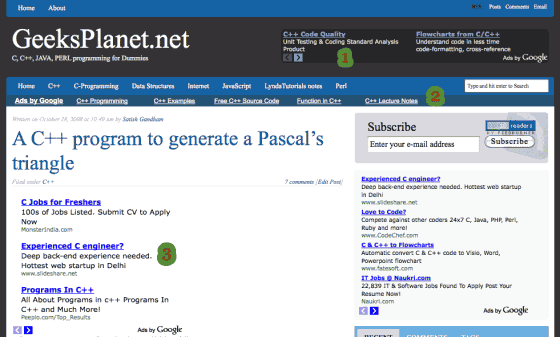
Ideal AD dimensions for SWIFT theme
Position 1: 468*60px, if your logo is wide use a 240*px ad.
Position 2: Linked unit works best in this place,you can also have 760*90px leadboard, or two 468*60px ads or four 240*60 px ads.
Position 3,4 and 5: 468*60px ad or large rectangles.
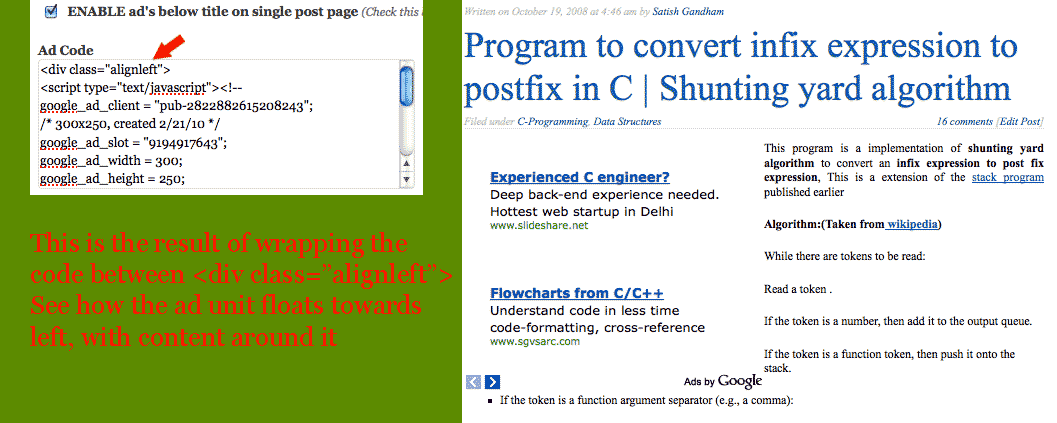
Wrap your ad code between <div class=”alignright”></div> or <div class=”alignleft”></div> to float your ads.
Banner AD’s
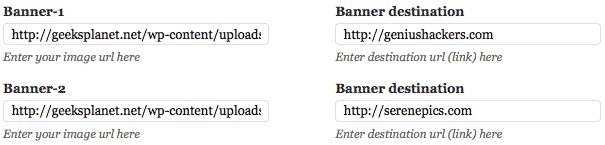
Using banners ads is pretty simple. Just input the image url, and the destination url (URL of the page you want to be opened when the ad is clicked).
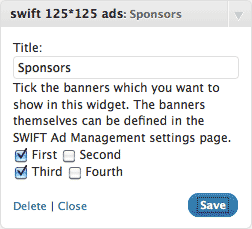
After you add the image and destination URL’s, goto widgets page and add the “SWIFT 125*125px ads” widget to the sidebar or footer.
Use text widget’s to place other ad’s in sidebar.
Adding ad’s to feedburner email and RSS feeds
Swift has option to add AD’s to the RSS feeds, use it to monetize your RSS feed. SWIFT is the only theme to offer such an option :D.
You can also use this option to promote contest’s on your blog or promote your products.
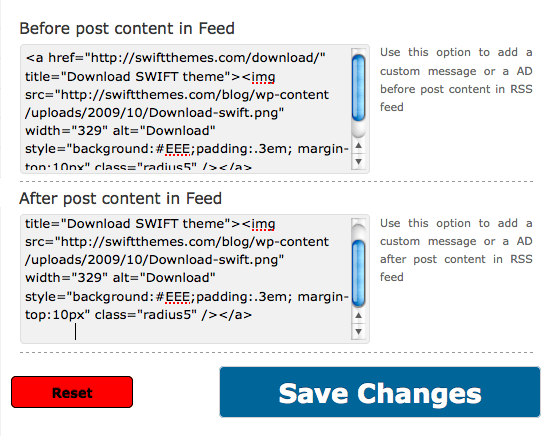
To my knowledge adding Google ad’s in email is against their TOS. Don’t add your Adsense code here.
FAQ’s
How to add ad’s to sidebar in SWIFT?
Use a text widget.
I added the image url in SWIFT ad management page, but ad’s aren’t appearing?
After you add the ad code in the ad management page, you should add the SWIFT 125*125 ad’s widget to the sidebar.
how to add google adds link to the header next to the logo
Hey,Satish
I want to insert ad code Between posts on homepage and i’m using magazine layout.
I just did that on my another website on which i’m using different theme.Please Suggest me some idea,it would be great help.
Thank u!
I’m using Swift v6.2.8 and I can’t find where to add my adsense code for feedburner.
That was retired long back as no one was using it and it’s a violation with some ad networks.
Hi Satish, I’ve been testing out your free theme (and will purchase the premium if I can resolve this issue)for placing advertisements in the banner, footer and header areas. I’m not successful with enabling ads in these areas. For the sidebar I’m using the AdRotate plug-in / widget which works great. Is there a way I can also embed that in the banner, footer, header so I have a single dashboard and ad management system? BTW, your Swift theme is superb and I’m looking forward to deploying if all goes well. Thanks in advance …
Hi Satish,
Thanks for the reply to my last query.
I have three google adsense ads for my single post pages – mid post, end of post and in the side bar for which i have enabled the side bar text widget. Most of the times the side bar ad does not show and instead two ads appear one below the other in the mid post position with end post ad appearing properly. Kindly suggest. Thanks!
Hi Satish.
Great theme, without doubt! I started on the basic and it seems to be making a difference in my search results ranking already.
I exhibit my name below post title and i do not know how to link it to my “about” page which is linked from menu. Presently the link shows a 404 error. Is there a way without going through html
Nope, you have to edit swift/lib/fucntions/display.php
Hi satish. How can i activate the ads in the middle of pages? I have the ads active in the middle of posts, but i don´t see them in my pages.
Thank you for a great theme.
put some plain text and check if its working.
If it is, then its problem with your ad network.
Satish
what ever way I try I can not get the swift 125X125 ads to work, all i seem to get is a thin grey line but no ads(pictures at all)
help please
Karl
Hi Satish,
can you tell me how I can increase the ad slot from four to eight? Please suggest.
Thanks,
Eddie
its complicated, I will increase it in the next version.
how to add who sees ads code in this?
couldn’t get you.
in which file is the ad code below the navbar call it located, i want to insert a code just below the navbar… it is “who sees ads” plugin code
its in header.php
My Ad Managment wont save, even when i click save it just saves the code and dosent enable the ad :S
FIXED, I had to uninstall the latest 5.7 and install 5.68